
Load-balancing Microsoft Exchange with nginx+ – Part 1: keepalived

nginxA couple of weeks ago a couple of my colleagues and I came to the conclusion that a client’s Microsoft Exchange platform was in need of some load-balancing.

Normally we achieve this by installing a pair of hardware load-balancers from F5.  Whilst these are excellent products and are well supported in our company, they’re certainly not cheap.  Unfortunately, one size definitely does not fit all with our customers.  Some demand the performance of the Bugatti Veyron, others only require the reliability of a Toyota Corolla.

With that in mind we decided to look at other options.

I’ve been load-balancing Exchange and VMware View for a while here in the lab using keepalived and HAProxy.  However, with our company looking at making the move to Softlayer, it was suggested this would be a good time to look at a product they support – nginx+.

Before I can get to that, I need to install and configure keepalived to support my nginx+ installation.

Other articles in the series:

  1. Installing and configuring keepalived
  2. Installing nginx+
  3. Configuring nginx+ for Microsoft Exchange
  4. Configuring Microsoft Exchange
  5. Tidying up

Firstly I spun-up two RHEL 6.6 VMs in my lab.  These consisted of 1 vCPU, 1Gb of RAM and a 16Gb thin-provisioned disk.  They were then patched using Spacewalk.

The IP addresses for both boxes were set to 172.17.80.11/24 and 172.17.80.12/24 and each vmnic was placed in VLAN80.

Then for both boxes, I added the following lines to /etc/sysctl.conf:

net.ipv4.ip_nonlocal_bind=1
net.ipv4.ip_forward=1

And made them take effect:

sysctl -p

Next I acquired the RPM for keepalived.  At the time of writing, v1.2.17 is the latest version available.  You can download a source tarball from the keepalived site, but for the sake of ease I decided to get the RPM from rpmfind.net.  Unfortunately the latest they have for RHEL/CentOS6 is 1.2.13, which for the lab is close enough.

Please note: for deploying in a production environment I would highly recommend obtaining the latest version direct from Red Hat’s Enterprise Load Balancer add-on.

Next I installed keepalived on both boxes:

yum localinstall -y --nogpgcheck keepalived-1.2.13-4.el6.x86_64.rpm

I then copied the default config (just in case):

cd /etc/keepalived
cp keepalived.conf keepalived.conf.old

Next I edited /etc/keepalived/keepalived.conf on the first host (HA1) and added:

! Configuration File for keepalived

global_defs {
   notification_email {
     admin@mdb-lab.com
   }
   notification_email_from keepalived@mdb-lab.com
   smtp_server 172.17.80.31
   smtp_connect_timeout 30
   router_id LVS_DEVEL
}

vrrp_sync_group VG1 {
   group {
      V1
      V2
   }
}

vrrp_instance V1 {
    state MASTER
    interface eth0
    virtual_router_id 10
    priority 101
    advert_int 1
    virtual_ipaddress {
        172.17.80.13
    }

vrrp_instance V2 {
    state MASTER
    interface eth0
    virtual_router_id 11
    priority 101
    advert_int 1
    virtual_ipaddress {
        172.17.80.113
    }
}

The config for HA2 is nearly identical, except for two lines. The state should be BACKUP and the priority should be lower at 100:

! Configuration File for keepalived

global_defs {
   notification_email {
     admin@mdb-lab.com
   }
   notification_email_from keepalived@mdb-lab.com
   smtp_server 172.17.80.31
   smtp_connect_timeout 30
   router_id LVS_DEVEL
}

vrrp_sync_group VG1 {
   group {
      V1
      V2
   }
}

vrrp_instance V1 {
    state BACKUP
    interface eth0
    virtual_router_id 10
    priority 100
    advert_int 1
    virtual_ipaddress {
        172.17.80.13
    }

vrrp_instance V2 {
    state BACKUP
    interface eth0
    virtual_router_id 11
    priority 100
    advert_int 1
    virtual_ipaddress {
        172.17.80.113
    }
}

Next, I configured iptables to allow VRRP communication:

iptables -I INPUT -p 112 -j ACCEPT

I also added a few other lines to iptables allow stuff like ICMP etc.
Finally I enabled the service on both VMs and rebooted:

chkconfig keepalived on
reboot

After I rebooted the hosts I checked to see which had the cluster addresses of 172.17.80.13 and 172.17.80.113:

ip addr sh

On HA1 this gave me:

1: lo: <LOOPBACK,UP,LOWER_UP> mtu 65536 qdisc noqueue state UNKNOWN
    link/loopback 00:00:00:00:00:00 brd 00:00:00:00:00:00
    inet 127.0.0.1/8 scope host lo
    inet6 ::1/128 scope host
       valid_lft forever preferred_lft forever
2: eth0: <BROADCAST,MULTICAST,UP,LOWER_UP> mtu 1500 qdisc pfifo_fast state UP qlen 1000
    link/ether 00:50:56:b2:44:ac brd ff:ff:ff:ff:ff:ff
    inet 172.17.80.11/24 brd 172.17.80.255 scope global eth0
    inet 172.17.80.13/32 scope global eth0
    inet 172.17.80.113/32 scope global eth0
    inet6 fe80::250:56ff:feb2:44ac/64 scope link
       valid_lft forever preferred_lft forever

To test failover, I setup a looping ping from another host on VLAN80 to each cluster address and then suspended the HA1 VM.  Each cluster IP failed over immediately to HA2, dropping only one ping in the process:
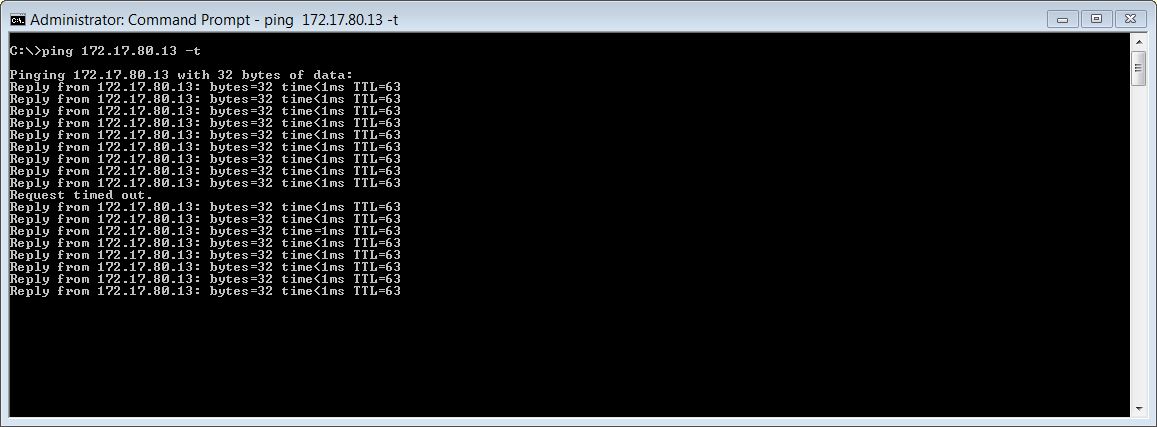
Ping

And that completes the keepalived installation and configuration.

In part 2, I install nginx+ on both VMs, before finally configuring it for Microsoft Exchange.

Backing-up multiple SQL databases using T-SQL

Today as part of a migration, a client asked me to backup all thirty three SQL databases on a specific server to a local drive.  Normally they only ask for a handful, and I use the following code:

USE <em>databaseName</em>;
GO
BACKUP DATABASE <em>databaseName</em>
TO DISK = 'I:\backups\<em>currentDate</em>_<em>currentTime</em>_<em>serverName</em>_<em>databaseName</em>.bak'
WITH FORMAT,13
MEDIANAME = 'I:\backups',
NAME = <em>'currentDate</em>_<em>currentTime</em>_<em>serverName</em>_<em>databaseName</em>.bak';
GO

However with thirty three databases to do, I needed something a little smarter.

The store procedure sp_databases gives me a list of all databases, but this also includes the temp, model and master databases which I don’t need.  What I needed was a script to iterate through all the databases, and back them up.

The first attempt went like this:

DECLARE @backupCommand varchar(1000)
SELECT @backupCommand = 'IF ''?'' IN(''dbaUtils'') BEGIN USE ? BACKUP DATABASE ? TO DISK = ''I:\backups\20150526_<em>serverName</em>_?.bak'' WITH FORMAT, MEDIANAME = ''I:\backups', NAME = ''20150526_<em>serverName</em>_?.bak'' END'
EXEC sp_MSforeachdb @backupCommand

Whilst that was great, it didn’t give me the current date and time for each database as it backed up.  After a lot of debugging, this came about:

DECLARE @backupCommand varchar(2000)
SELECT @backupCommand = 'IF ''?'' NOT IN(''master'', ''model'', ''msdb'', ''tempdb'') BEGIN USE ?; DECLARE @filename varchar(100) SET @filename = ''I:\backups\'' + left(replace(replace(replace(convert(varchar(25), getdate(), 120),''-'',''''),'' '',''_''),'':'',''''),13) + ''_'' + @@SERVERNAME + ''_?.bak''; BACKUP DATABASE ? TO DISK=@filename END'
EXEC sp_MSforeachdb @backupCommand

A big thanks to my friend and resident SQL Jedi Master Chris for his help (read: he did it all) on this.

Compress thin-provisioned VMDKs even further

Here in the lab I’m running out of resources to run all my VMs concurrently on the one host.  Rather than add another physical host at this site (or switch off some VMs), and with long-distance vMotion now available in vSphere 6.0, I decided to place another at my secondary site in the UK.

Before the move to vSphere 6.0 (I’m currently studying for my VCAP so want to stay on 5.5 for the time being), I decided it would be best to migrate my 14-host Exchange 2010 environment over the secondary site, and setup SRM in the process.  However before I could do that I needed to setup vSphere Replication to get the actual VMs over.

With the VPN to the secondary site not being the quickest, it was important to compress my already thin-provisioned VMs down as much as possible.

It’s an old one, but always worth doing in this type of scenario.

On each VM, I downloaded Mark Russinovich’s SDelete and ran it on each of the Windows drives:

sdelete -z

This balloons each VMDK up to its maximum size, but don’t worry about that for now.  When it finished, I powered down each VM and switched to the ESXi host console (using SSH) and ran:

vmkfstools -K /vmfs/volumes/path-to-VM/VM.vmdk

The important thing here to remember is to target the VMs normal VMDK, not the one ending in “-flat.vmdk”.

After a while it finished and freed up a lot of space, ready to be replicated using vSphere Replication 5.8!


Each VM still took two days though 😦

Recovering damaged VMFS partitions

Last year a client suffered a power outage at one of their major sites.  Unfortunately the Powerchute installation I had configured on a vSphere vMA didn’t work as expected, and all hosts, storage and networking equipment died when the UPS ran out of juice.  This however, was only the beginning of what was to become a very long day.

When power was restored, a member of the Operations team brought all the kit back on-line, but unfortunately the SAN controllers came up before the expansion arrays… therefore marking them as dead.  When the ESXi hosts came back up, they were missing quite a few LUNs, and got visibly upset.

Despite all the storage controllers and arrays being online, ESXi refused to recognise any of the partitions and only offered the ever-helpful option of adding new storage (and therefore destroying what was already there).  That’s when Ops decided to escalate the issue.

After calling VMware support, the prognosis was not good… the data was lost and we had to restore from backup.  Knowing the client would not be happy with this, I decided to step-in and take over.

I didn’t believe the data was lost, but merely needed a little nurturing to bring it back to life.  First, the storage had to be brought back in the right order:

  1. Shutting down all ESXi servers
  2. Disconnecting controller B fibre
  3. Disconnecting controller A fibre
  4. Shutting down enclosure 2
  5. Shutting down enclosure 1
  6. Shutting down controller B
  7. Shutting down controller A

If the SAN controllers can’t see all the arrays, then the hosts have no chance of seeing the LUNs.

Then at two minute intervals:

  1. Reconnecting controller A and B fibre
  2. Powering up enclosure 2
  3. Powering up enclosure 1
  4. Starting controller A
  5. Starting controller B
  6. Powering on ESXi host 1

Rescanning the LUNs still gave me nothing, so I SSH’d onto the host and listed the disks it could see using:

esxcli storage core path list | grep naa

This gave me two devices:

naa.60080e50002ea8b600000318524cd170
naa.60080e50002eba84000002de524cd0b2

Then I listed the partition table (on each disk) using:

partedUtil getptbl /vmfs/devices/disks/naa.60080e50002ea8b600000318524cd170

This showed as empty (ie. no entry starting with “1” or the word “vmfs” anywhere) – not good.  I then checked for the beginning and end blocks on each disk (thank you VMware for the following command):

offset="128 2048"; for dev in `esxcfg-scsidevs -l | grep "Console Device:" | awk {'print $3'}`; do disk=$dev; echo $disk; partedUtil getptbl $disk; { for i in `echo $offset`; do echo "Checking offset found at $i:"; hexdump -n4 -s $((0x100000+(512*$i))) $disk; hexdump -n4 -s $((0x1300000+(512*$i))) $disk; hexdump -C -n 128 -s $((0x130001d + (512*$i))) $disk; done; } | grep -B 1 -A 5 d00d; echo "---------------------"; done

I then listed the usable sectors:

partedUtil getUsableSectors /vmfs/devices/disks/naa.60080e50002ea8b600000318524cd170

That came back with two numbers.  I needed the large one (4684282559).  I then rebuilt the partition table using:

partedUtil setptbl /vmfs/devices/disks/naa.60080e50002ea8b600000318524cd170 gpt "1 2048 4684282559 AA31E02A400F11DB9590000C2911D1B8 0”

So to recap,

naa.60080e50002ea8b600000318524cd170 = disk device
2048 = starting sector
4684282559 = end sector
AA31E02A400F11DB9590000C2911D1B8 = GUID code for VMFS

I then mounted the partition:

vmkfstools –V

After repeating the above command for the second disk, ESXi host 1 then saw both partitions.  I could then bring up all the VMs and the remaining ESXi hosts.

Bullet…. dodged.