 Recently, the company I work for has done really well in bringing onboard new customers – nearly all of which we have provided with a private cloud solution running on the VMware platform. Continue reading
vCenter
Wednesday Tidbit: Connecting vCenter to vCloud Air
 Recently I signed up with VMware vCloud Air, as I want to use it as an endpoint for machines provisioned in the lab by vRealize Automation. Before I could get to that, I need to link my vCenter to vCA, which turned out to be trickier then I first imagined… Continue reading
Wednesday Tidbit: Test an SRM Recovery Plan using PowerCLI
 In the last Wednesday Tidbit I showed how to protect a VM using SRM and PowerCLI.
In this one I show how to test a failover plan so that in the event of a disaster we know what to expect. Once the failover has been performed and recorded as successful, I will back it out. Continue reading
Wednesday Tidbit: Protect a VM using SRM and PowerCLI
When it was released last year, PowerCLI 5.5 brought with it the ability to do basic management of Site Recovery Manager. Whilst by no means trivial to configure, the functionality is there for when needed.
In this tidbit I will show how to connect to SRM, list the protection groups and add a VM to one. Continue reading
Building an advanced lab using VMware vRealize Automation – Part 7: Configure vCenter Server Appliance SSL certificates
 In part 6 we installed and configured a vCenter Server Appliance in the lab. This will manage the various components, plus serve as an endpoint for vRealize Automation.
In this post we replace the default SSL certificates from the vCSA with trusted certificates from our in-house certificate authority. Continue reading
Building an advanced lab using VMware vRealize Automation – Part 6: Deploy and configure the vCenter Server Appliance
In part 5 of this series we created a Windows 2012 R2 Domain Controller to provide our authentication services for the environment.
In this part, we deploy the VMware vCenter Server Appliance (vCSA) 5.5. This will serve as the backbone to our infrastructure, as well as the endpoint for the majority of our VMware vRealize Automation deployments. Later in the series, we will configure other endpoints such as VMware’s vCloud Air or AWS. Continue reading
Man down… when you need to DR your DR
Last week I received the following error on my DR ESXi host:

The host in question is a Dell PowerEdge R710, and this indicated a hardware failure of some sort.
mpx.vmhba32:C0:T0:L0 is an 8GB SanDisk SD card containing the ESXi 5.5 boot partitions. With this gone, it meant the host would still live, but any changes wouldn’t be saved. It was also unlikely that the host would boot up again.
Sure enough this turned out to be the case. Three times out of four the server would hang at the BIOS. To remedy this I disconnected the SD card reader and ordered a replacement.
Unfortunately this turned out to be a red herring, as the new SD card reader failed to be recognised, as did the internal USB stick. After further testing, I decided it was the control panel (a daughterboard that the SD card reader, internal USB and console port plug into) that was faulty. After replacing that, the server booted normally into ESXi.
The total downtime was about ten days, which meant when the remote vCenter and vSphere Replication servers came back up there was a lot of data which needed to be replicated. This subsequently hammered my web connection, so much so that I couldn’t even bring up the vCenter Web Client to monitor how the replication was going.
To find out I needed to switch to the command line.
On the source host I used the following command to get the list of VMs and their associated VM IDs:
vim-cmd vmsvc/getallvms
This give an output similar to:
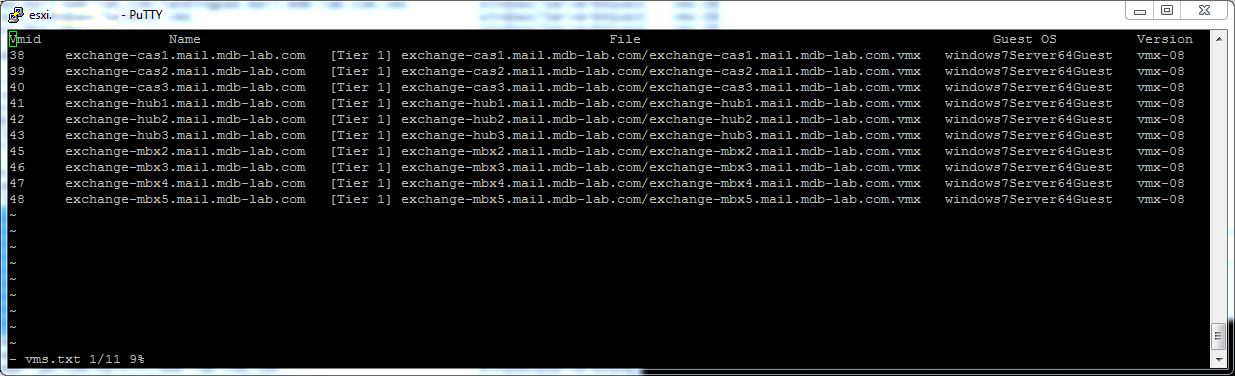
With each VM ID number, I then used the following command to get status of each replication:
vim-cmd hbrsvc/vmreplica.getState vmid
That told me exactly how much had replicated and how much was left to do. With a total of thirteen VMs to replicate, that was going to take a while!

The BusyBox shell on ESXi is quite limited, but a loop such as:
for i in `seq 38 43`; do vim-cmd hbrsvc/vmreplica.getState $i; done | grep DiskID
Gives me a basic overview on how my mail replications are going:

In the long-run this hasn’t caused too much of an issue, however it has made me think about moving my DR needs to vCloud Air…
Recovering damaged VMFS partitions
Last year a client suffered a power outage at one of their major sites. Unfortunately the Powerchute installation I had configured on a vSphere vMA didn’t work as expected, and all hosts, storage and networking equipment died when the UPS ran out of juice. This however, was only the beginning of what was to become a very long day.
When power was restored, a member of the Operations team brought all the kit back on-line, but unfortunately the SAN controllers came up before the expansion arrays… therefore marking them as dead. When the ESXi hosts came back up, they were missing quite a few LUNs, and got visibly upset.
Despite all the storage controllers and arrays being online, ESXi refused to recognise any of the partitions and only offered the ever-helpful option of adding new storage (and therefore destroying what was already there). That’s when Ops decided to escalate the issue.
After calling VMware support, the prognosis was not good… the data was lost and we had to restore from backup. Knowing the client would not be happy with this, I decided to step-in and take over.
I didn’t believe the data was lost, but merely needed a little nurturing to bring it back to life. First, the storage had to be brought back in the right order:
- Shutting down all ESXi servers
- Disconnecting controller B fibre
- Disconnecting controller A fibre
- Shutting down enclosure 2
- Shutting down enclosure 1
- Shutting down controller B
- Shutting down controller A
If the SAN controllers can’t see all the arrays, then the hosts have no chance of seeing the LUNs.
Then at two minute intervals:
- Reconnecting controller A and B fibre
- Powering up enclosure 2
- Powering up enclosure 1
- Starting controller A
- Starting controller B
- Powering on ESXi host 1
Rescanning the LUNs still gave me nothing, so I SSH’d onto the host and listed the disks it could see using:
esxcli storage core path list | grep naa
This gave me two devices:
naa.60080e50002ea8b600000318524cd170
naa.60080e50002eba84000002de524cd0b2
Then I listed the partition table (on each disk) using:
partedUtil getptbl /vmfs/devices/disks/naa.60080e50002ea8b600000318524cd170
This showed as empty (ie. no entry starting with “1” or the word “vmfs” anywhere) – not good. I then checked for the beginning and end blocks on each disk (thank you VMware for the following command):
offset="128 2048"; for dev in `esxcfg-scsidevs -l | grep "Console Device:" | awk {'print $3'}`; do disk=$dev; echo $disk; partedUtil getptbl $disk; { for i in `echo $offset`; do echo "Checking offset found at $i:"; hexdump -n4 -s $((0x100000+(512*$i))) $disk; hexdump -n4 -s $((0x1300000+(512*$i))) $disk; hexdump -C -n 128 -s $((0x130001d + (512*$i))) $disk; done; } | grep -B 1 -A 5 d00d; echo "---------------------"; done
I then listed the usable sectors:
partedUtil getUsableSectors /vmfs/devices/disks/naa.60080e50002ea8b600000318524cd170
That came back with two numbers. I needed the large one (4684282559). I then rebuilt the partition table using:
partedUtil setptbl /vmfs/devices/disks/naa.60080e50002ea8b600000318524cd170 gpt "1 2048 4684282559 AA31E02A400F11DB9590000C2911D1B8 0”
So to recap,
naa.60080e50002ea8b600000318524cd170 = disk device
2048 = starting sector
4684282559 = end sector
AA31E02A400F11DB9590000C2911D1B8 = GUID code for VMFS
I then mounted the partition:
vmkfstools –V
After repeating the above command for the second disk, ESXi host 1 then saw both partitions. I could then bring up all the VMs and the remaining ESXi hosts.
Bullet…. dodged.
 virtualhobbit